

MomsallMomsall
Aa
  • Home
  • Financial Services
    Financial ServicesShow More
    How to Buy Out a Sibling on Shared Property
    How to Buy Out a Sibling on Shared Property
    2 years ago
    How to Save a Dollar a Day to Save Money for Students
    How to Save a Dollar a Day to Save Money for Students
    2 years ago
    Finance Interview Questions with Answers
    Finance Interview Questions with Answers
    2 years ago
    NGLUCKY App
    NGLUCKY App – How to Earn From NGLUCKY App
    2 years ago
    2Captcha Review
    2Captcha Review – Is 2Captcha.com Legit or Scam?
    2 years ago
  • Tech
    TechShow More
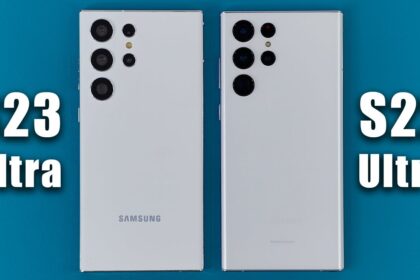
    Samsung Galaxy s23 Ultra vs Samsung Galaxy s22 Ultra Specs
    Samsung Galaxy s23 Ultra vs Samsung Galaxy s22 Ultra Specs
    2 years ago
    iPhone 14 vs Samsung S23
    iPhone 14 vs Samsung S23
    2 years ago
    iPhone 14 Pro Max vs Samsung S23 Ultra
    iPhone 14 Pro Max vs Samsung S23 Ultra
    2 years ago
    Apple vs Samsung
    Apple vs Samsung
    2 years ago
    samsung vs iphone
    Samsung vs iPhone
    2 years ago
  • Reviews
    ReviewsShow More
    Best Smart Watch for Android
    Best Smart Watch for Android
    2 years ago
    Compare and Contrast Superman and Batman
    Compare and Contrast Superman and Batman: An In-Depth Comparison
    2 years ago
    Cengage Customer Support
    Cengage Customer Support: How to Contact Cengage Customer Service
    2 years ago
    Uber Eats Customer Services Number
    Uber Eats Customer Services Number: How to Contact Uber Eats Customer Services
    2 years ago
    Activities to Celebrate Valentines Day
    Activities to Celebrate Valentines Day
    2 years ago
  • Quizzes
    QuizzesShow More
    Nursing Student Quiz
    Nursing Student Quiz – Take Quiz Now!
    2 years ago
    Upwork Readiness Quiz
    Upwork Readiness Quiz – Take Quiz Now!
    2 years ago
    Fiverr Quiz
    Fiverr Readiness Quiz – Take Quiz Now!
    2 years ago
  • Test & Answers
    Test & AnswersShow More
    Top 10 Interview Questions and Answers PDF
    Top 10 Interview Questions and Answers PDF
    2 years ago
    Care Home Interview Questions and Answers
    Care Home Interview Questions and Answers
    2 years ago
    Fundamentals of Nursing Test Questions and Answers PDF
    Fundamentals of Nursing Test Questions and Answers PDF
    2 years ago
    Google Ads Search Certification Answers
    Google Ads Search Certification Answers
    2 years ago
    Cheat Sheet Walmart Assessment Test Answers PDF
    Cheat Sheet Walmart Assessment Test Answers PDF (Updated Version 2023/2024)
    2 years ago
  • Scholarships
    ScholarshipsShow More
    Queen Elizabeth Common Wealth Scholarship
    Queen Elizabeth Common Wealth Scholarship
    2 years ago
    Coolidge Scholarship
    Coolidge Scholarship: Requirements and Application Process
    2 years ago
    Courage to Grow Scholarship
    Courage to Grow Scholarship
    2 years ago
    Cameron Impact Scholarship
    Cameron Impact Scholarship
    2 years ago
    Alumni Association Student Engagement Scholarship
    Alumni Association Student Engagement Scholarship
    2 years ago
  • Funfactnook
  • About Us
Aa
MomsallMomsall
Search
  • Home
  • Financial Services
  • Tech
  • Reviews
  • Quizzes
  • Test & Answers
  • Scholarships
  • Funfactnook
  • About Us
Have an existing account? Sign In
Follow US
© 2023 Momsall LTD. All Rights Reserved.
Tech

How to Use TikTok On Pc – Using TikTok on PC | Can You Use TikTok on PC

Ekene Okolie
Last updated: 23/04/13
By Ekene Okolie
How to Use TikTok On Pc
SHARE

Simply visit tiktok.com to access TikTok on pc, click on the watch now button to get started once you there, you can now have access to TikTok on your desktop.

How to Use TikTok on PC – once you download and install blue stacks, you will be able to not only use TikTok on your laptop or desktop, most people are hooked up with the short video social app TikTok. With the help of TikTok, users can easily create unique videos and share them with friends and other TikTok users. Tiktok program offers different audio clips such as dance, movie scene, performance, freestyle, and a lot more. It may be better if you use this on your pc and enjoy watching it on a large screen, but how can you use TikTok on your pc? Here are some amazing ways to do it.
How to Use TikTok On Pc
Table of Contents
  • How to Use TikTok on PC

How to Use TikTok on PC

  • Apowermirror
  • Let’s view
  • Apowermanager
  1. Apowermirror

This is a screen mirroring application that enables you to mirror your android and IOS device to a bigger screen conveniently. With that, you will be able to use different applications on PC, such as TikTok, Facebook, Messenger, Whatsapp, and a lot more.

To use TikTok on mac and window, follow the step below. I.e. download and install apowermirror on the PC before you start using TikTok on your PC.

For Android

  • Install the app from Google Playstore.
  • Enable USB debugging on your android phone, and connect your phone to your PC with a USB cable. After that, you type ‘’start now’’ to mirror your phone to PC.
  • Also, you can connect your phone to the PC via Wi-Fi. Make sure you Connect your android and PC to the same Wi-Fi network, then open the app, hit the ‘’M’’ blue button to detect available devices, then click ‘’phone screen mirroring’’ to start mirroring. Your phone screen will be displayed on pc immediately, you can then open TikTok app on your phone and enjoy using it on your PC.

FOR iOS

Note: your ios device and your computer should be connected to the same Wi-Fi network.

  • Swipe upward to open the control center, and tap ‘’screen mirroring’’ to find your computer for screen reflecting.
  • Open TikTok on your ios device once your ios devices are mirrored to pc, then you can make use of TikTok on your pc.

2. Let’s View

Alternatively, you can use let’s view to stream TikTok on your pc. It is free to download that why it considered one of the best choices. Also, you not expected to create an account before using it, furthermore, the tools have good video quality and smooth IU. You can also screen record with a flexible output format compatible with almost all devices. Also, you can screen capture and write on the screen using the paintbrush tools, all these features in one tool.

HERE IS A STEP BY STEP PRECEDURE TO USE THE TOOL

  • Download the app on your PC using the download button below, find the market app on your device
  • Lunch the app on your phone and computer; connect them under the same   Wi-Fi server.
  • Wait until your PC name appears on your phone

DISCLAIMERS: Click on “discover new devices.

Note:  QR code or PIN can also be used to connect, in any case, it is not detected.

3. Apowermanager

Try Apowermanager if you want an alternative method to use TikTok on PC, it is a professional phone manager for android and ios devices. You can also access the TikTok app on your pc as well as other apps. You can also screenshot and save the program directly on your local drive. You can easily transfer and backup files from your phones such as photos, videos, audio, notes, contact, messages apps, and so on and so forth.

Here Is A Quick Guide on How This Program Works

  • On your computer, download and install this program. Then Lunch the program once you are done.
  • Then get the apowermanager app on the phone from google play stole or app store.

For Android

  • Turn on USB debugging on your Android device, and the use a USB cable to connect your phone to PC.
  • For wireless connection, after you connect your phone and pc to the same wireless network, click Wi-Fi icon on the right of the program.

For iOS

It is convenient to connect your ios device to your pc or mac with a USB cable; you would receive a notification on your device. Tap ‘’trust’’ to enable the connection.

PEOPLE ARE VERY INTERESTED IN – imo App For iOS Free Download – Download imo App on iOS

Was this article helpful?
YesNo
TAGGED: bluestacks tiktok, Can You Use TikTok on PC, how to get tiktok on chromebook, how to search on tiktok website, How to Use TikTok On Pc, Using TikTok on PC
Share This Article
Facebook Twitter Email Print
Share
Ekene Okolie
By Ekene Okolie
Popularly referred to a techapreneur with over a decade of experience, Ekene I embodies the spirit of a creative blog curator and an avid enthusiast of blogging, driven by a profound passion. My heart resonates with delving into the forefront of tech updates, critiquing products, and crafting insightful tutorials.
Previous Article Facebook Analytic Insight Tool Facebook Analytic Insight Tool – Facebook Audience Insight 2020 | Facebook Insight App
Next Article Grammarly Sign Up Grammarly Sign Up – Sign Up to Grammarly | Grammarly.com Sign Up
Leave a comment

Leave a Reply Cancel reply

Your email address will not be published. Required fields are marked *

Samsung Galaxy s23 Ultra vs Samsung Galaxy s22 Ultra Specs

Samsung Galaxy s23 Ultra vs Samsung Galaxy s22 Ultra Specs

Jennifer Ibrahim Jennifer Ibrahim 1 year ago
iPhone 14 vs Samsung S23
iPhone 14 Pro Max vs Samsung S23 Ultra
Apple vs Samsung
Samsung vs iPhone
© 2023 Momsall LTD. All Rights Reserved.
  • Home
  • About Us
  • Advertise With Us
  • Contact Us
  • Privacy Policy
Welcome Back!

Sign in to your account

Lost your password?