
MomsallMomsall
Aa
  • Home
  • Financial Services
    Financial ServicesShow More
    How to Buy Out a Sibling on Shared Property
    How to Buy Out a Sibling on Shared Property
    2 years ago
    How to Save a Dollar a Day to Save Money for Students
    How to Save a Dollar a Day to Save Money for Students
    2 years ago
    Finance Interview Questions with Answers
    Finance Interview Questions with Answers
    2 years ago
    NGLUCKY App
    NGLUCKY App – How to Earn From NGLUCKY App
    2 years ago
    2Captcha Review
    2Captcha Review – Is 2Captcha.com Legit or Scam?
    2 years ago
  • Tech
    TechShow More
    Samsung Galaxy s23 Ultra vs Samsung Galaxy s22 Ultra Specs
    Samsung Galaxy s23 Ultra vs Samsung Galaxy s22 Ultra Specs
    2 years ago
    iPhone 14 vs Samsung S23
    iPhone 14 vs Samsung S23
    2 years ago
    iPhone 14 Pro Max vs Samsung S23 Ultra
    iPhone 14 Pro Max vs Samsung S23 Ultra
    2 years ago
    Apple vs Samsung
    Apple vs Samsung
    2 years ago
    samsung vs iphone
    Samsung vs iPhone
    2 years ago
  • Reviews
    ReviewsShow More
    Best Smart Watch for Android
    Best Smart Watch for Android
    2 years ago
    Compare and Contrast Superman and Batman
    Compare and Contrast Superman and Batman: An In-Depth Comparison
    2 years ago
    Cengage Customer Support
    Cengage Customer Support: How to Contact Cengage Customer Service
    2 years ago
    Uber Eats Customer Services Number
    Uber Eats Customer Services Number: How to Contact Uber Eats Customer Services
    2 years ago
    Activities to Celebrate Valentines Day
    Activities to Celebrate Valentines Day
    2 years ago
  • Quizzes
    QuizzesShow More
    Nursing Student Quiz
    Nursing Student Quiz – Take Quiz Now!
    2 years ago
    Upwork Readiness Quiz
    Upwork Readiness Quiz – Take Quiz Now!
    2 years ago
    Fiverr Quiz
    Fiverr Readiness Quiz – Take Quiz Now!
    2 years ago
  • Test & Answers
    Test & AnswersShow More
    Top 10 Interview Questions and Answers PDF
    Top 10 Interview Questions and Answers PDF
    2 years ago
    Care Home Interview Questions and Answers
    Care Home Interview Questions and Answers
    2 years ago
    Fundamentals of Nursing Test Questions and Answers PDF
    Fundamentals of Nursing Test Questions and Answers PDF
    2 years ago
    Google Ads Search Certification Answers
    Google Ads Search Certification Answers
    2 years ago
    Cheat Sheet Walmart Assessment Test Answers PDF
    Cheat Sheet Walmart Assessment Test Answers PDF (Updated Version 2023/2024)
    2 years ago
  • Scholarships
    ScholarshipsShow More
    Queen Elizabeth Common Wealth Scholarship
    Queen Elizabeth Common Wealth Scholarship
    2 years ago
    Coolidge Scholarship
    Coolidge Scholarship: Requirements and Application Process
    2 years ago
    Courage to Grow Scholarship
    Courage to Grow Scholarship
    2 years ago
    Cameron Impact Scholarship
    Cameron Impact Scholarship
    2 years ago
    Alumni Association Student Engagement Scholarship
    Alumni Association Student Engagement Scholarship
    2 years ago
  • Funfactnook
  • About Us
Aa
MomsallMomsall
Search
  • Home
  • Financial Services
  • Tech
  • Reviews
  • Quizzes
  • Test & Answers
  • Scholarships
  • Funfactnook
  • About Us
Have an existing account? Sign In
Follow US
© 2023 Momsall LTD. All Rights Reserved.
Tech

How to Make Your Yeti Microphone Orange Light Stop Flashing

Ekene Okolie
Last updated: 23/12/01
By Ekene Okolie
How to Make Your Yeti Microphone Orange Light Stop Flashing
SHARE

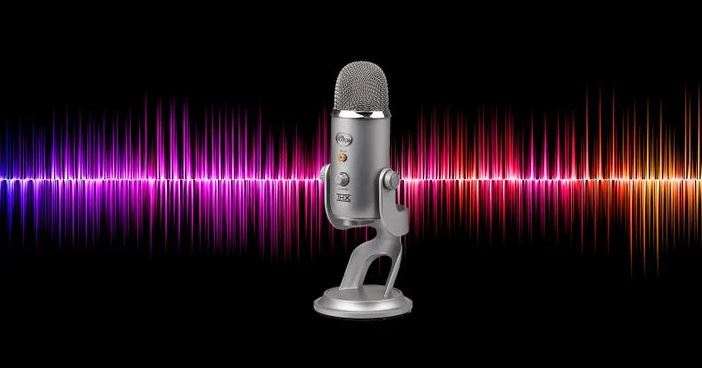
It’s can be annoying when you always have to see your Yeti mic’s indicator light flashing orange. However, the company provided that light notify you if something is wrong, but your mic will still work.

The flashing orange light indicates a mismatched sample rate between your Yeti mic and the software using it. Follow these steps, and you can turn that light to green in no time.
How  to Make Your Yeti Microphone Orange Light Stop Flashing
Table of Contents
  • Adjust Your Mic's Sample Rate
  • Now You Have Your Green Light

Adjust Your Mic’s Sample Rate

You will need to download and install the Blue Sherpa software in order to adjust the sample rate of your Yeti mic. Blue Sherpa software can function with Yeti X, Yeti, Yeti Nano, Snowball, and Snowball iCE. To get started, follow these steps.

Download: Blue Sherpa software for Windows and Mac 

⦁ Download and install the Blue Sherpa software using the link above.

⦁ When it’s done installing, it will recognize your Yeti mic immediately.

⦁ Select the name of your mic in the top right-hand corner close to the Home button.

⦁ You will see the current format setting for your Yeti. From here, select Open Control Panel to open the Windows Sound pane.

⦁ In the Windows Sound panel, locate your Yeti mic, click it, and select Properties.

⦁ Choose the Advanced tab in the Microphone Properties window.

⦁ Under Default Format, you can change your sample rate and bit depth. The recommended format to try first is 2 channel, 24 bit, 48000 Hz.

Now You Have Your Green Light

Once you’re done with that process, your Yeti mic should immediately switch from an orange light to a green light when you have the settings correct. If it’s still flashing orange, then go through the steps again till you get it right.

You can still explore the Blue Sherpa software as it offers much more than just adjusting your mic’s sample rate.

ALSO READ>>>>How to Delete Your Mail in Gmail

Was this article helpful?
YesNo
TAGGED: Adjust Your Mic's Sample Rate, How to Make Your Yeti Microphone Orange Light Stop Flashing
Share This Article
Facebook Twitter Email Print
Share
Ekene Okolie
By Ekene Okolie
Popularly referred to a techapreneur with over a decade of experience, Ekene I embodies the spirit of a creative blog curator and an avid enthusiast of blogging, driven by a profound passion. My heart resonates with delving into the forefront of tech updates, critiquing products, and crafting insightful tutorials.
Previous Article How to Delete Your Mail in Gmail How to Delete Your Mail in Gmail
Next Article How to Confirm MacBook Recalls on Your Desktop How to Confirm MacBook Recalls on Your Desktop
Leave a comment

Leave a Reply Cancel reply

Your email address will not be published. Required fields are marked *

Samsung Galaxy s23 Ultra vs Samsung Galaxy s22 Ultra Specs

Samsung Galaxy s23 Ultra vs Samsung Galaxy s22 Ultra Specs

Jennifer Ibrahim Jennifer Ibrahim 1 year ago
iPhone 14 vs Samsung S23
iPhone 14 Pro Max vs Samsung S23 Ultra
Apple vs Samsung
Samsung vs iPhone
© 2023 Momsall LTD. All Rights Reserved.
  • Home
  • About Us
  • Advertise With Us
  • Contact Us
  • Privacy Policy
Welcome Back!

Sign in to your account

Lost your password?