

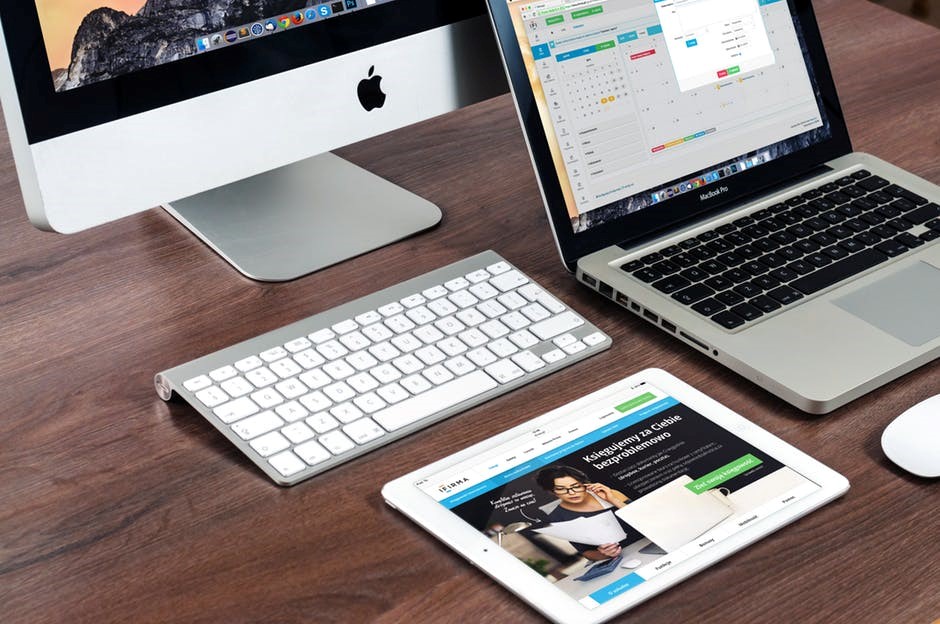
Did you know that there are more than 100 million active Mac users around the world?
Mac computers, created by Apple are one of the best options to choose because of their easy-to-use platform.
If you just bought a Mac or are thinking about it, there are many things that you should learn.
Continue reading to discover some of the best tips and tricks that all Mac owners should know!
1. Launch Programs Quickly
Do you open the same programs every day on your computer?
If so, you might want to learn how to add things to your list of auto-launches when you log in to your computer. Go to System Preferences and select Users and Groups. Once you are here, you will see all of your accounts on the left-hand side.
Select the desired account that you want items to launch on. Click on the “+” button to add apps and programs that you want to launch. You can also remove apps by selecting them and hitting the “-” button.
2. Customize Fonts
If you are wondering, how do I add fonts to my Mac, the answer is simple.
With the use of Mac apps, you can download one to add a font. Many people recommend using the Set app because it is easy to upload different fonts from various sites.
Once you install the fonts for your account, you will have to enable them to appear. You can also install fonts on Mac computers by going into your Finder and selecting Applications. Then you will double-click the Font Book icon to select from the options.
3. Keyboard Shortcuts
All Mac users should know how to create keyboard shortcuts.
Keyboard shortcuts are an easier way to accomplish a task without pressing so many buttons or clicking. Did you know that pressing the Command, Shift, and Delete keys will clear out your trash bin? Another example of a keyboard shortcut is to press Command, “F.” This will pull up a prompt box to put in keywords that will display on your open page.
To create your own shortcut, go into your system preferences and select Keyboards. Once you have made it to the Keyboards section, select Shortcuts Tab. Here, you can select an app and assign a key combination to open your app.
4. Screenshot
Everyone knows how to take a screenshot on a phone, but what about Mac computers?
If you want to pull a picture from your desktop view, you can do so by pressing Command, Shift, “4.” Once you press these buttons, you can drag a box around your desired area for the picture. When you release the mouse, the screenshot will be saved and added to your desktop.
You can also take a screenshot by pressing Command, Shift, “3” at the same time. Once you release the keys, a screenshot will be taken of your entire screen. This is good if you need to display the time, along with different application views.
5. Force Quit Applications
There is nothing worse than a program that isn’t cooperating and wants to slow down your entire system.
If you find yourself stuck on a page and it is slowing everything else down, you will want to force quit the entire program. One way to do this is by right-clicking the application icon at the bottom of your desktop. Then select “Force Quit.”
You can also force quit an application by pressing Command, Option, Escape (Esc). Once you force quit an application, a box will pop up asking if you would like to report a problem to system preferences. You can skip this step or send in a complaint. When you select your apps, they should open up where you left off if you press restore.
6. Do Things Faster
If you want to get an answer quickly to your question, you should consider using Spotlight.
Spotlight is a basic feature of Macs that allows you to quickly do conversions, math problems, and open applications. This is a shortcut search bar that will give you everything you need to know.
Simply press the magnifying glass icon in the top right corner of your computer. Once you press this, the spotlight box will appear. Type in whatever app you need to open or convert and the application will do the rest!
You can even use the spotlight to pull of the weather and definitions. This is the perfect tool to use in school and at work.
7. Control Sound & Brightness Settings
Do you wish that you had more control when lowering or raising the volume on your computer?
Or maybe you wish that the computer screen would be at a different brightness? If you want more control over these problems, simply hold down the Option, Shift keys. While holding them down, press F1/F2 or F11/F12 to lower or raise the settings.
This will break it down into small increments so that you have more control over your settings. This is a perfect trick to use when it is late and you want your brightness dimmed.
Become the Best Mac Owners
Mac owners have one thing in common and that is a love for user-friendly computers.
There are many ways that you can create shortcuts on your computer. Whether you want to quickly open an app or take a screenshot, there are only a few keys to press.
By utilizing this guide, you can become more efficient on your computer and get work done faster. Stay up to date on Mac tips since technology is always evolving.
Be sure to check out our blog for more articles about how to buy a Mac and Macs operating system!