


MomsallMomsall
Aa
  • Home
  • Financial Services
    Financial ServicesShow More
    How to Buy Out a Sibling on Shared Property
    How to Buy Out a Sibling on Shared Property
    2 years ago
    How to Save a Dollar a Day to Save Money for Students
    How to Save a Dollar a Day to Save Money for Students
    2 years ago
    Finance Interview Questions with Answers
    Finance Interview Questions with Answers
    2 years ago
    NGLUCKY App
    NGLUCKY App – How to Earn From NGLUCKY App
    2 years ago
    2Captcha Review
    2Captcha Review – Is 2Captcha.com Legit or Scam?
    2 years ago
  • Tech
    TechShow More
    Samsung Galaxy s23 Ultra vs Samsung Galaxy s22 Ultra Specs
    Samsung Galaxy s23 Ultra vs Samsung Galaxy s22 Ultra Specs
    2 years ago
    iPhone 14 vs Samsung S23
    iPhone 14 vs Samsung S23
    2 years ago
    iPhone 14 Pro Max vs Samsung S23 Ultra
    iPhone 14 Pro Max vs Samsung S23 Ultra
    2 years ago
    Apple vs Samsung
    Apple vs Samsung
    2 years ago
    samsung vs iphone
    Samsung vs iPhone
    2 years ago
  • Reviews
    ReviewsShow More
    Best Smart Watch for Android
    Best Smart Watch for Android
    2 years ago
    Compare and Contrast Superman and Batman
    Compare and Contrast Superman and Batman: An In-Depth Comparison
    2 years ago
    Cengage Customer Support
    Cengage Customer Support: How to Contact Cengage Customer Service
    2 years ago
    Uber Eats Customer Services Number
    Uber Eats Customer Services Number: How to Contact Uber Eats Customer Services
    2 years ago
    Activities to Celebrate Valentines Day
    Activities to Celebrate Valentines Day
    2 years ago
  • Quizzes
    QuizzesShow More
    Nursing Student Quiz
    Nursing Student Quiz – Take Quiz Now!
    2 years ago
    Upwork Readiness Quiz
    Upwork Readiness Quiz – Take Quiz Now!
    2 years ago
    Fiverr Quiz
    Fiverr Readiness Quiz – Take Quiz Now!
    2 years ago
  • Test & Answers
    Test & AnswersShow More
    Top 10 Interview Questions and Answers PDF
    Top 10 Interview Questions and Answers PDF
    2 years ago
    Care Home Interview Questions and Answers
    Care Home Interview Questions and Answers
    2 years ago
    Fundamentals of Nursing Test Questions and Answers PDF
    Fundamentals of Nursing Test Questions and Answers PDF
    2 years ago
    Google Ads Search Certification Answers
    Google Ads Search Certification Answers
    2 years ago
    Cheat Sheet Walmart Assessment Test Answers PDF
    Cheat Sheet Walmart Assessment Test Answers PDF (Updated Version 2023/2024)
    2 years ago
  • Scholarships
    ScholarshipsShow More
    Queen Elizabeth Common Wealth Scholarship
    Queen Elizabeth Common Wealth Scholarship
    2 years ago
    Coolidge Scholarship
    Coolidge Scholarship: Requirements and Application Process
    2 years ago
    Courage to Grow Scholarship
    Courage to Grow Scholarship
    2 years ago
    Cameron Impact Scholarship
    Cameron Impact Scholarship
    2 years ago
    Alumni Association Student Engagement Scholarship
    Alumni Association Student Engagement Scholarship
    2 years ago
  • Funfactnook
  • About Us
Aa
MomsallMomsall
Search
  • Home
  • Financial Services
  • Tech
  • Reviews
  • Quizzes
  • Test & Answers
  • Scholarships
  • Funfactnook
  • About Us
Have an existing account? Sign In
Follow US
© 2023 Momsall LTD. All Rights Reserved.
Tech

How to Deselect In Photoshop

Ekene Okolie
Last updated: 24/02/06
By Ekene Okolie
How to Deselect In Photoshop
SHARE

Photoshop is a program that manipulates images. The terms deselect and select as used in Photoshop are very paramount for a certain part of the surface.

There are a number of useful tools in Photoshop like zoom tool, but the tool that allow us to pick portions in Photoshop. These tools comprise of; magic wand, marquee tools, and polygonal lasso. These devices are found under the selection menu at toolbox and options.

The selected portion is the only area that needs to be modified. Therefore, having knowledge on how to deselect In Photoshop the edited portion after selection is paramount. There are a few ways in which a selected area in Photoshop can be deselected, hidden, and saved.

A selection, therefore, is a tool that determines where alteration is to be done on an image. A partial selection can also be done by the use of a layer mask.

This is performed by making a copy of the deleted portion as a new covering over the initial. The lower layer is then deleted by making a selection. The upper transparent layer is then merged with the initial portion.

Alternatively, an eraser can be used. Selection by command can also be done where the color range command selects all layers with a certain color. In order to make all these steps clear it is better we go through the whole process step by step.

Table of Contents
  • How to Deselect in Photoshop
  • Deselection of an Object in Photoshop

How to Deselect in Photoshop

Tools Used for Selection in Photoshop

The three common tools used for selection are;

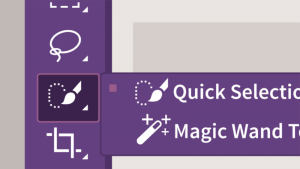
  • The Marquee tool is the commonly used tool for selections on geographic layouts. Rectangular and elliptical shapes are easily drawn by the use of this tool. The marquee tool is made to drag over the desired shape of the portion.
How to Deselect In Photoshop
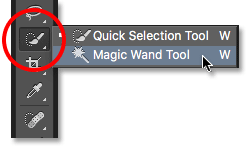
  • The magic wand tool in Photoshop is used to perform the selection and masking of an area of an image in order to alter it without interfering with the undesired portion. It, therefore, removes the background of an image while the desired portion remains intact.
How to Deselect In Photoshop
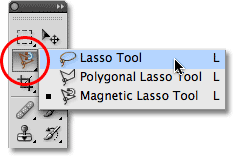
  • A lasso tool is simply a tool that is used to drag around the portion to be selected. The tool makes an outline of dots around the object of interest.
How to Deselect In Photoshop

After the selection process, we now need the deselection of the image.

Deselection of an Object in Photoshop

The selected portion can be deselected by either clicking on the menu item or by the use of key

Combinations on the keyboard.

See Also: How to Outline Text in Photoshop

It is therefore wise to know how to deselect parts once selection is finished. The dotted lines around an image easily show the selected portion.

If you click the drop-down menu at the top menu of the software, a deselect option is seen. You can then use your mouse to access the top select menu or a keyboard shortcut instead.

For a keyboard shortcut, the control and the D button are held down together. The layer to be selected is clicked on the layer panel.

With the control key still pressed on, the desired areas can be deselected by clicking on them. This deselection allows us to precisely edit the image.


Was this article helpful?
YesNo
TAGGED: Deselect In Photoshop, How to Deselect In Photoshop
Share This Article
Facebook Twitter Email Print
Share
Ekene Okolie
By Ekene Okolie
Popularly referred to a techapreneur with over a decade of experience, Ekene I embodies the spirit of a creative blog curator and an avid enthusiast of blogging, driven by a profound passion. My heart resonates with delving into the forefront of tech updates, critiquing products, and crafting insightful tutorials.
Previous Article Liquid Mode Uses AI To Make PDFs Easier To Read On Adobe Liquid Mode Uses AI To Make PDFs Easier To Read On Adobe
Next Article How To Zoom In Photoshop How To Zoom In Photoshop?
Leave a comment

Leave a Reply Cancel reply

Your email address will not be published. Required fields are marked *

Samsung Galaxy s23 Ultra vs Samsung Galaxy s22 Ultra Specs

Samsung Galaxy s23 Ultra vs Samsung Galaxy s22 Ultra Specs

Jennifer Ibrahim Jennifer Ibrahim 1 year ago
iPhone 14 vs Samsung S23
iPhone 14 Pro Max vs Samsung S23 Ultra
Apple vs Samsung
Samsung vs iPhone
© 2023 Momsall LTD. All Rights Reserved.
  • Home
  • About Us
  • Advertise With Us
  • Contact Us
  • Privacy Policy
Welcome Back!

Sign in to your account

Lost your password?