
MomsallMomsall
Aa
  • Home
  • Financial Services
    Financial ServicesShow More
    How to Buy Out a Sibling on Shared Property
    How to Buy Out a Sibling on Shared Property
    2 years ago
    How to Save a Dollar a Day to Save Money for Students
    How to Save a Dollar a Day to Save Money for Students
    2 years ago
    Finance Interview Questions with Answers
    Finance Interview Questions with Answers
    2 years ago
    NGLUCKY App
    NGLUCKY App – How to Earn From NGLUCKY App
    2 years ago
    2Captcha Review
    2Captcha Review – Is 2Captcha.com Legit or Scam?
    2 years ago
  • Tech
    TechShow More
    Samsung Galaxy s23 Ultra vs Samsung Galaxy s22 Ultra Specs
    Samsung Galaxy s23 Ultra vs Samsung Galaxy s22 Ultra Specs
    2 years ago
    iPhone 14 vs Samsung S23
    iPhone 14 vs Samsung S23
    2 years ago
    iPhone 14 Pro Max vs Samsung S23 Ultra
    iPhone 14 Pro Max vs Samsung S23 Ultra
    2 years ago
    Apple vs Samsung
    Apple vs Samsung
    2 years ago
    samsung vs iphone
    Samsung vs iPhone
    2 years ago
  • Reviews
    ReviewsShow More
    Best Smart Watch for Android
    Best Smart Watch for Android
    2 years ago
    Compare and Contrast Superman and Batman
    Compare and Contrast Superman and Batman: An In-Depth Comparison
    2 years ago
    Cengage Customer Support
    Cengage Customer Support: How to Contact Cengage Customer Service
    2 years ago
    Uber Eats Customer Services Number
    Uber Eats Customer Services Number: How to Contact Uber Eats Customer Services
    2 years ago
    Activities to Celebrate Valentines Day
    Activities to Celebrate Valentines Day
    2 years ago
  • Quizzes
    QuizzesShow More
    Nursing Student Quiz
    Nursing Student Quiz – Take Quiz Now!
    2 years ago
    Upwork Readiness Quiz
    Upwork Readiness Quiz – Take Quiz Now!
    2 years ago
    Fiverr Quiz
    Fiverr Readiness Quiz – Take Quiz Now!
    2 years ago
  • Test & Answers
    Test & AnswersShow More
    Top 10 Interview Questions and Answers PDF
    Top 10 Interview Questions and Answers PDF
    2 years ago
    Care Home Interview Questions and Answers
    Care Home Interview Questions and Answers
    2 years ago
    Fundamentals of Nursing Test Questions and Answers PDF
    Fundamentals of Nursing Test Questions and Answers PDF
    2 years ago
    Google Ads Search Certification Answers
    Google Ads Search Certification Answers
    2 years ago
    Cheat Sheet Walmart Assessment Test Answers PDF
    Cheat Sheet Walmart Assessment Test Answers PDF (Updated Version 2023/2024)
    2 years ago
  • Scholarships
    ScholarshipsShow More
    Queen Elizabeth Common Wealth Scholarship
    Queen Elizabeth Common Wealth Scholarship
    2 years ago
    Coolidge Scholarship
    Coolidge Scholarship: Requirements and Application Process
    2 years ago
    Courage to Grow Scholarship
    Courage to Grow Scholarship
    2 years ago
    Cameron Impact Scholarship
    Cameron Impact Scholarship
    2 years ago
    Alumni Association Student Engagement Scholarship
    Alumni Association Student Engagement Scholarship
    2 years ago
  • Funfactnook
  • About Us
Aa
MomsallMomsall
Search
  • Home
  • Financial Services
  • Tech
  • Reviews
  • Quizzes
  • Test & Answers
  • Scholarships
  • Funfactnook
  • About Us
Have an existing account? Sign In
Follow US
© 2023 Momsall LTD. All Rights Reserved.
Tech

Google Home App for Android: How to Set Google Home App Up For Your Mobile Device

Ekene Okolie
Last updated: 23/08/04
By Ekene Okolie
Google Home App for Android
SHARE

The Google Home app for android is a rich-featured google application that has great functions to keep your home smart.

You know that feeling when you don’t have to lift a finger and there is a bot to do mostly everything for you, Just like Alexa and the likes, google home is a smart speaker that can interact with the owner via smart speech commands.

What then is the google home app? it just serves as a remote control, for the smart home device.

The application is so great that it only doesn’t just let you control the device but also smart home products like smart lights, cameras, and even your thermostat.

This brings us down to what you need to know about the App.
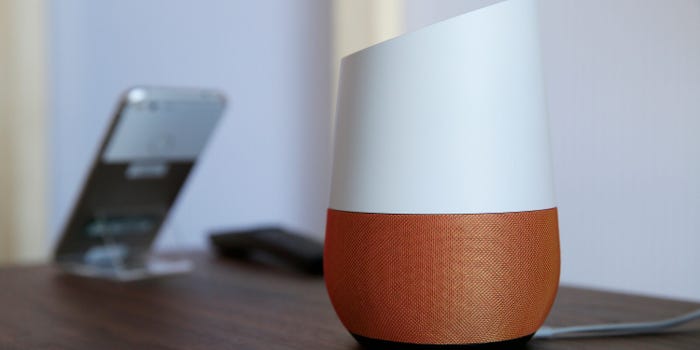
Google Home App for Android
Table of Contents
  • What Can You Do With The Google Home App
  • How Do I Set up My Google Home app?
  • How To Set Up The Google Home Device on the App For Android
  • How To Set Up Google Assistant For The Google Home App For Android

What Can You Do With The Google Home App

  • You can use the Google Home app to set up and control WiFi, Chromecast devices, and even google Nests.
  • You can also use the app to control, organize and manage friendly compatible lights, speakers, cameras, and more — (it serves as a remote for smart home devices.)
  • You can also use it to check reminders and recent notifications like next football matches and the likes.
  • You can also manage settings for Google devices and Google Assistant, like updating what current news you get every day, scheduling your football matches, updating and reminders concerning daily routines.
  • You can also connect to music services like YouTube Music, Spotify, and Apple Music.

How Do I Set up My Google Home app?

  • You need to download the Google Home app on your phone here
  • Then you need to open the Google Home app. Take note that if it’s your first time on the app,  you would be asked to watch a short video clip which is optional anyway then tap on get started.
  • The next step is to confirm the Google account you might want to use in setting up your new app.
  • On the next screen you would see an option that says Create a home page, tap  Get started. On the next page, tap  New devices to set up a new device or  Works with Google to link an existing device or service.
  • Finally on the  Choose a home page, tap  Create another home, then  Next. You can also choose the desired nickname to identify the home, then enter the home address on the next page.

How To Set Up The Google Home Device on the App For Android

  • You would need to plugin your google home device to light, then when you hear a chim sound, it shows it is powered on.
  • Then at the top left corner of the google app, you would need to tap on the plus icon.
  • The you are to choose the device you want to set up from the add and manage menu.
  • Also tap on the New devices option to begin a successful linking of your Google Home to the app.
  • You would then be asked to choose the existing home you would choose to connect to or create a new one.
  •  Upon success choosing which home to connect to then the Google Home app will begin searching for devices. Once it identifies your Google Home device, then tap Next.
  • Once doen. the google home app would ask to confirm connection by playing a sound from the speaker.

How To Set Up Google Assistant For The Google Home App For Android

  • After the Google home app and and google home device are connected. you would be asked to set up your Google Assistant, click on Next.
  • Click on  I agree to activate Voice Match, which teaches the Assistant to recognize your voice. Follow the on-screen instructions as required.
  • You would then be asked which music services you wish to link to. When finished Tap Next.

PEOPLE ALSO READ; FM WhatsApp App Update

Was this article helpful?
YesNo

TAGGED: Google home, google home app, Google Home App for Android, How to Change the Clock Face on Your Google Nest Hub Using the Google Home App, How To Reconnect SmartThings To The Google Home App, Reconnect SmartThings To The Google Home App
Share This Article
Facebook Twitter Email Print
Share
Ekene Okolie
By Ekene Okolie
Popularly referred to a techapreneur with over a decade of experience, Ekene I embodies the spirit of a creative blog curator and an avid enthusiast of blogging, driven by a profound passion. My heart resonates with delving into the forefront of tech updates, critiquing products, and crafting insightful tutorials.
Previous Article Sony PlayStation 5 Black Friday Deals Sony PlayStation 5 Black Friday Deals: Best Black Friday PS5 Deals
Next Article MISTPLAY Apk MISTPLAY Apk Download – Get Rewards for Playing Games | What Games are on MISTPLAY
Leave a comment

Leave a Reply Cancel reply

Your email address will not be published. Required fields are marked *

Samsung Galaxy s23 Ultra vs Samsung Galaxy s22 Ultra Specs

Samsung Galaxy s23 Ultra vs Samsung Galaxy s22 Ultra Specs

Jennifer Ibrahim Jennifer Ibrahim 1 year ago
iPhone 14 vs Samsung S23
iPhone 14 Pro Max vs Samsung S23 Ultra
Apple vs Samsung
Samsung vs iPhone
© 2023 Momsall LTD. All Rights Reserved.
  • Home
  • About Us
  • Advertise With Us
  • Contact Us
  • Privacy Policy
Welcome Back!

Sign in to your account

Lost your password?